Profile Photo & Avatars
Choose standard avatars, upload your photo, or generate professional AI headshots.
Overview & Core Benefits
Your profile photo is your first digital handshake with recruiters. Setting up a professional profile picture or avatar builds immediate credibility and helps establish your personal brand on the platform.
Step-by-Step Walkthrough Guide
Follow these step-by-step instructions to master the Profile Photo & Avatars workflow on the CareerCove platform.
Step 1: Access the Profile Photo Dashboard
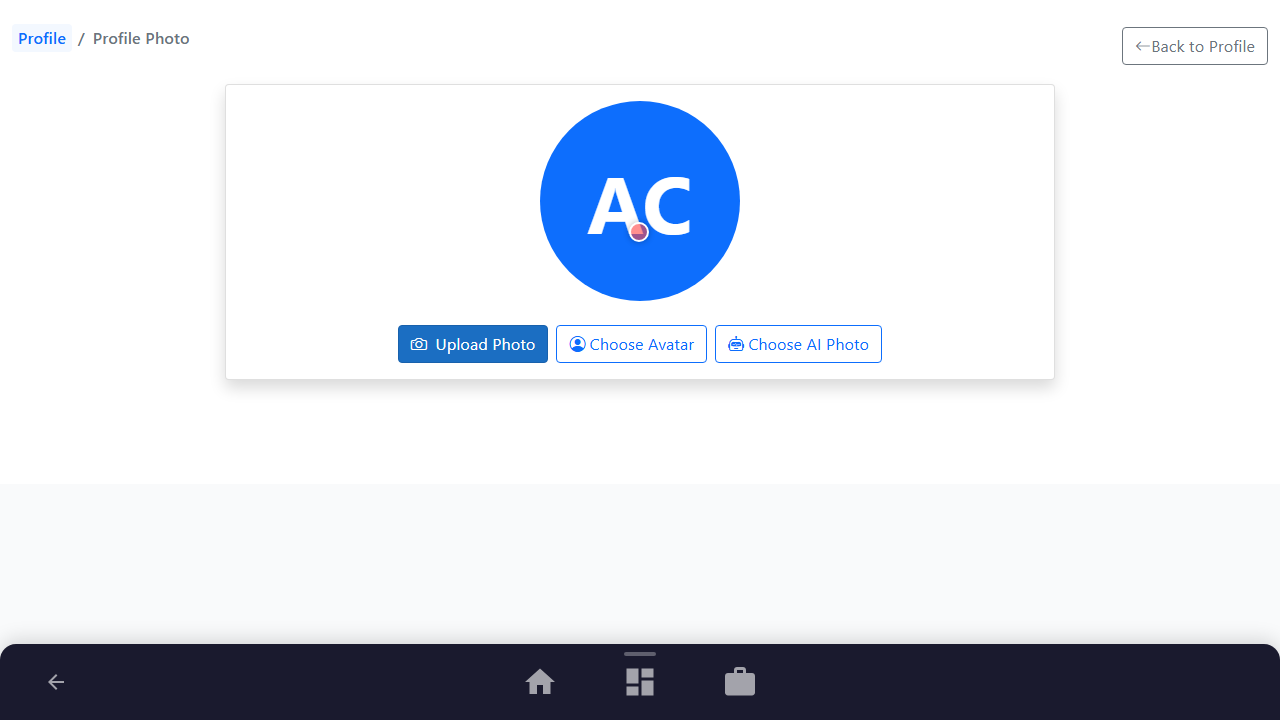
Open your user settings menu and select the 'Profile Photo' option to navigate to the dedicated image management dashboard. This serves as your primary control center for managing your digital presentation.
Purpose: To access all tools for uploading, selecting, deleting, or viewing your profile picture or avatar in a secure environment.
Benefit: Having a single, dedicated workspace ensures you can quickly manage your profile image without getting lost in other complex account settings.
Outcome: The Profile Photo page loads, showing your current profile picture (or initial placeholder if none is set) and action buttons for custom uploads, avatars, or AI photos.
Step 2: Choose a Standard Avatar
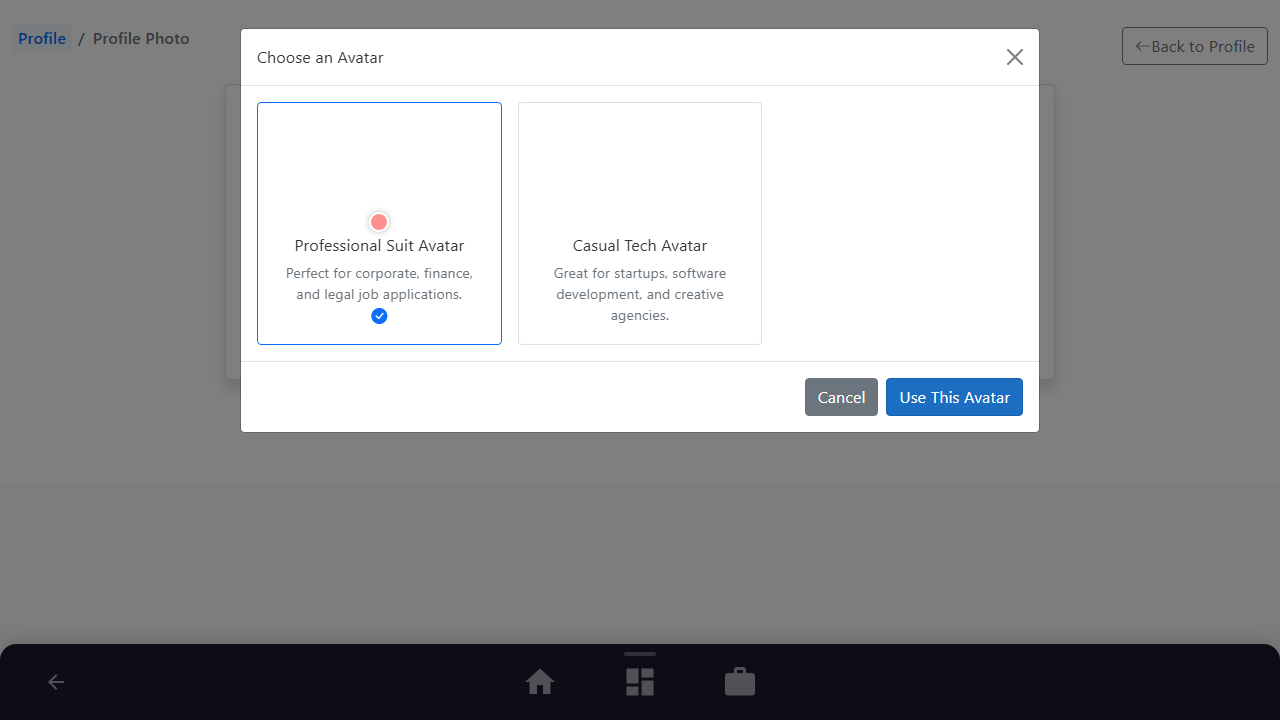
Click the 'Choose Avatar' button to open the library of standard, high-quality, pre-designed digital avatars. Select your preferred avatar character and save the changes to update your profile instantly.
Purpose: To provide a clean, professional visual representation without needing to upload a personal photo.
Benefit: Great for users who value privacy or want to maintain a distinct, clean personal brand on the platform without exposing their actual photograph.
Outcome: Your selection is confirmed, the avatar modal closes, and your profile image is updated to the chosen vector avatar immediately.
Step 3: Choose an AI Generated Photo
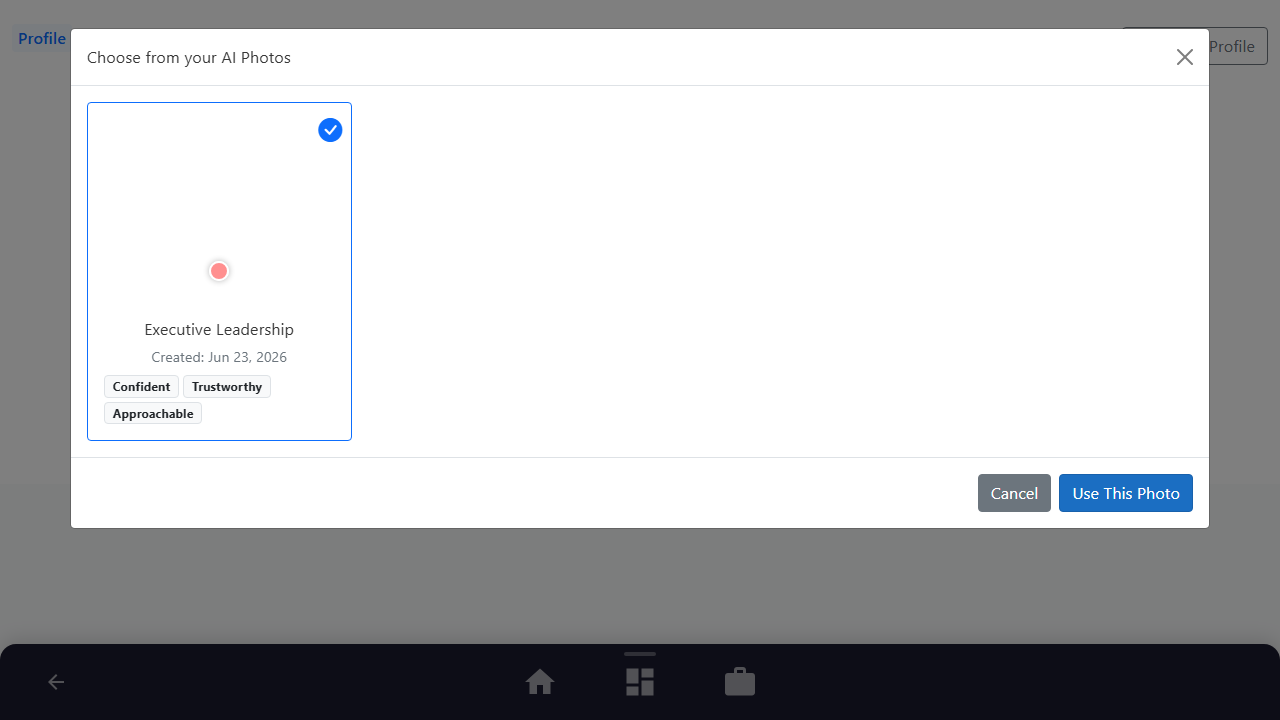
Click the 'Choose AI Photo' button to view headshots generated by the platform's AI Photo Analysis and enhancement service. Select the professional headshot that best fits your industry's standards.
Purpose: To let you easily select and apply high-quality, professional portraits that have been optimized for recruiter engagement.
Benefit: Instantly elevates your professionalism using advanced AI enhancement tools, removing background noise and optimizing lighting without requiring an expensive photo shoot.
Outcome: The selected AI-enhanced photo is set as your active profile photo, updating your public presence across the entire platform.
Step 4: Upload Your Custom Photo
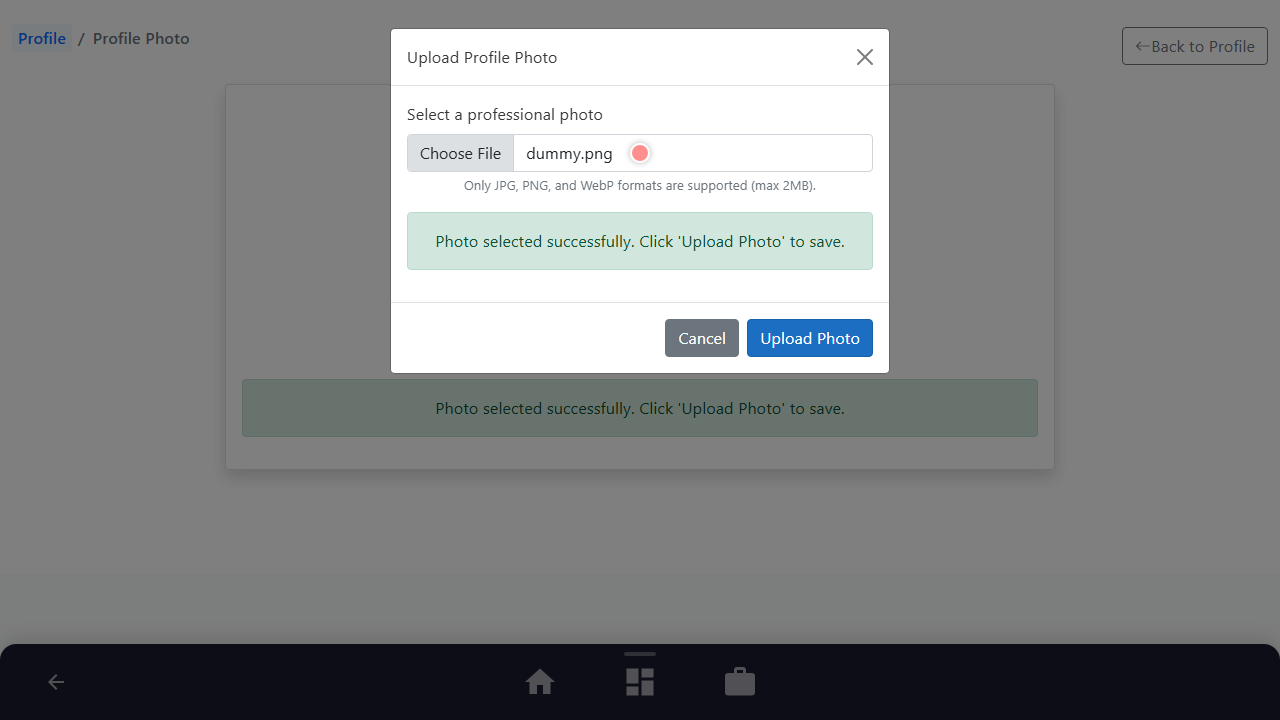
Click the 'Upload Photo' button, select a professional image file (JPEG, PNG, or WebP) from your local computer, and submit the upload. The system will process and set it as your main profile picture.
Purpose: To customize your profile with a genuine, personal photograph to make your account feel authentic and trustworthy.
Benefit: Builds immediate human connection and trust with hiring managers by presenting a recognizable, authentic face representing your work history.
Outcome: Your uploaded photo is validated, processed, and displayed on your dashboard as your new profile picture.
See It In Action
Maximising Your Journey
A polished profile photo or custom AI avatar reinforces your digital presence, helping you make a great first impression when sharing your public career pages.
Ready to apply this guide to your own career?
Register an account or sign in to save your progress, build and optimize your resume, and access advanced AI career tools.
Recommended Pathway Steps