Automate Your Job Hunt: Enabling and Mastering Smart Matching
Let AI uncover high-relevance roles, track viewed listings, and curate your personal opportunity feed.
Overview & Core Benefits
Eliminate hours of manual search fatigue. CareerCove's AI Smart Matching engine continuously analyzes your resume's deepest competencies, skills, and accomplishments against live market opportunities in your preferred locations. With interactive recommendations delivered straight to your Career Dashboard, you can inspect real job postings, automatically keep track of which listings you've already evaluated, instantly add top candidates into your job tracking pipeline, and dismiss irrelevant roles with instant pool replacement.
Step-by-Step Walkthrough Guide
Follow these step-by-step instructions to configure, discover, and interact with tailored opportunities using CareerCove's Smart Matching engine.
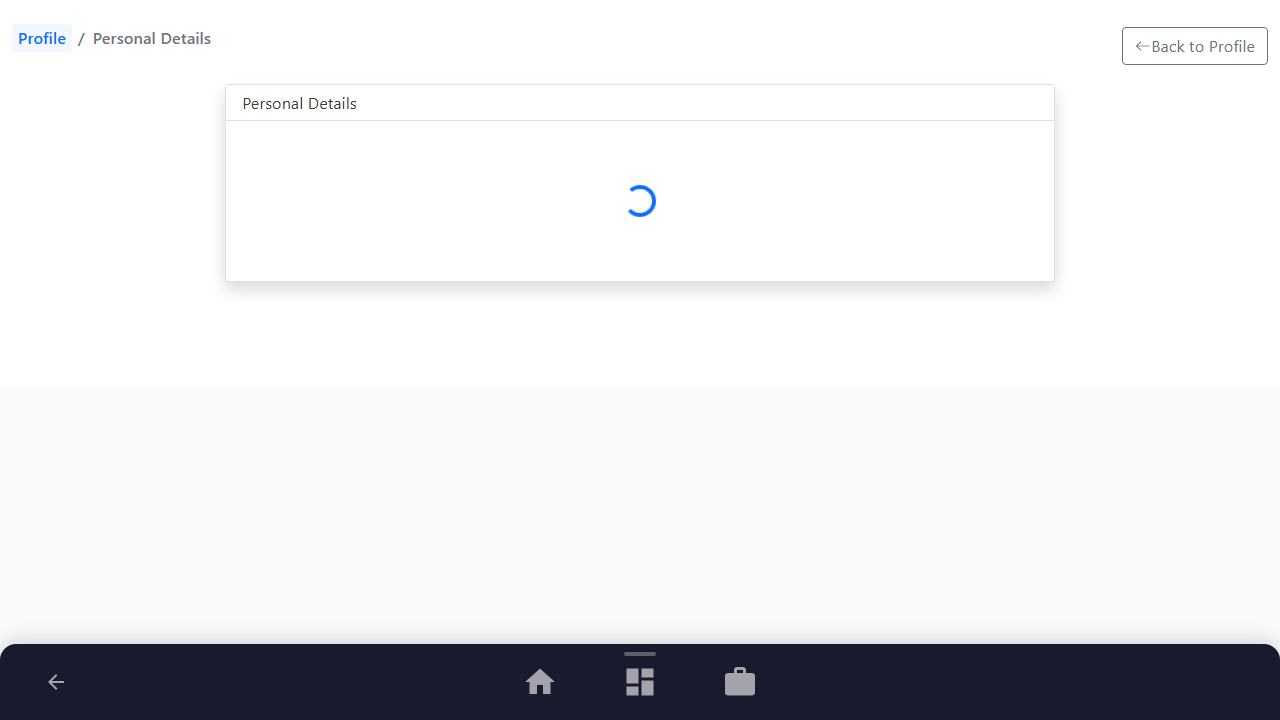
Step 1: Open Personal Details
Navigate to the Personal Details configuration panel from your profile or settings. Daily smart matching requires your target location (Country and City) to anchor realistic, regionally relevant opportunities.
Purpose: Open the profile details editor and configure geographic targeting.
Benefit: Ensures job discoveries reflect your genuine relocation or local commute preferences.
Outcome: The Personal Details page loads with your target preferences ready for configuration.
Step 2: Toggle Daily Smart Matching
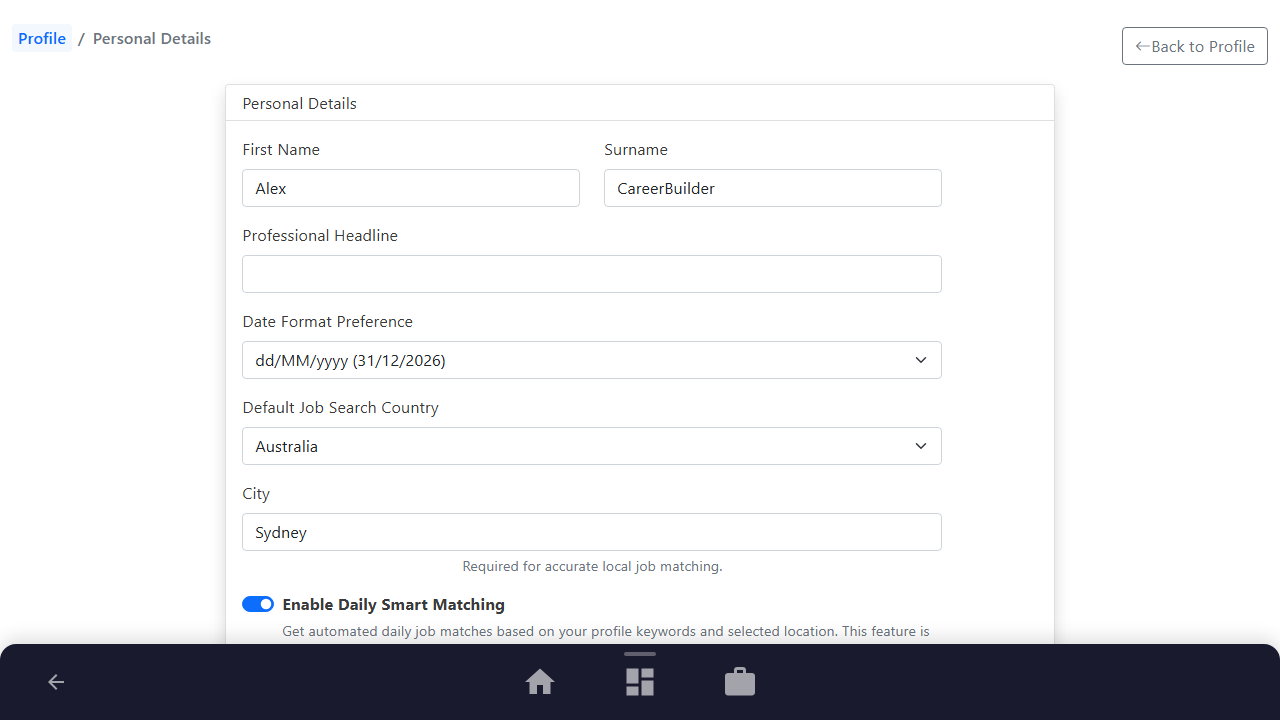
Confirm your default search Country and City, then toggle the "Enable Daily Smart Matching" switch. This instructs CareerCove's background matching engine to run daily automated scans against incoming job listings.
Purpose: Activate automated daily job scanning.
Benefit: Unlocks hands-free job discovery that works for you in the background 24/7.
Outcome: The Daily Smart Matching switch turns active and reveals your keyword controls below.
Step 3: Extract and Refine Resume Keywords
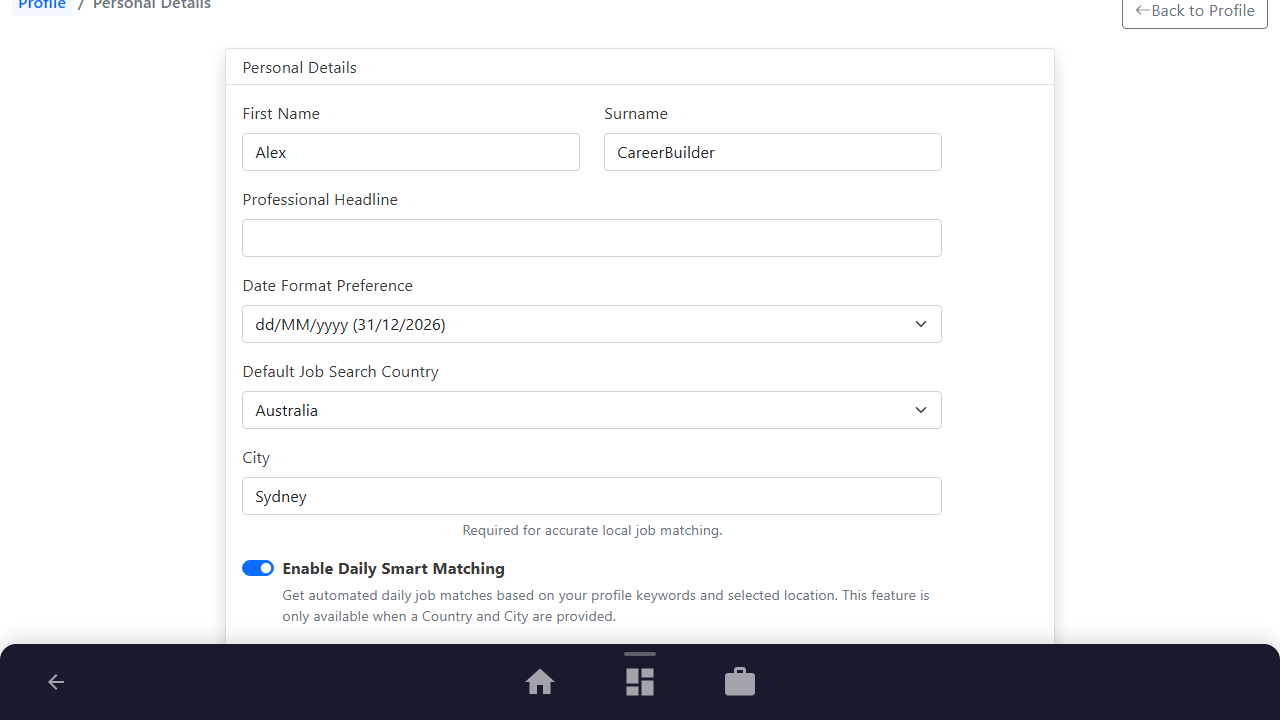
Click the "Refresh Keywords" button to trigger AI analysis of your uploaded resume. The engine scans your career history, extracting high-impact technical terms, tools, and domain keywords.
Purpose: Extract and align job-matching keywords directly from your resume.
Benefit: Replaces generic job titles with the precise competencies and skills that make you uniquely qualified.
Outcome: Interactive skill chips appear under the matching controls representing your targeted search terms.
Step 4: Save Configuration
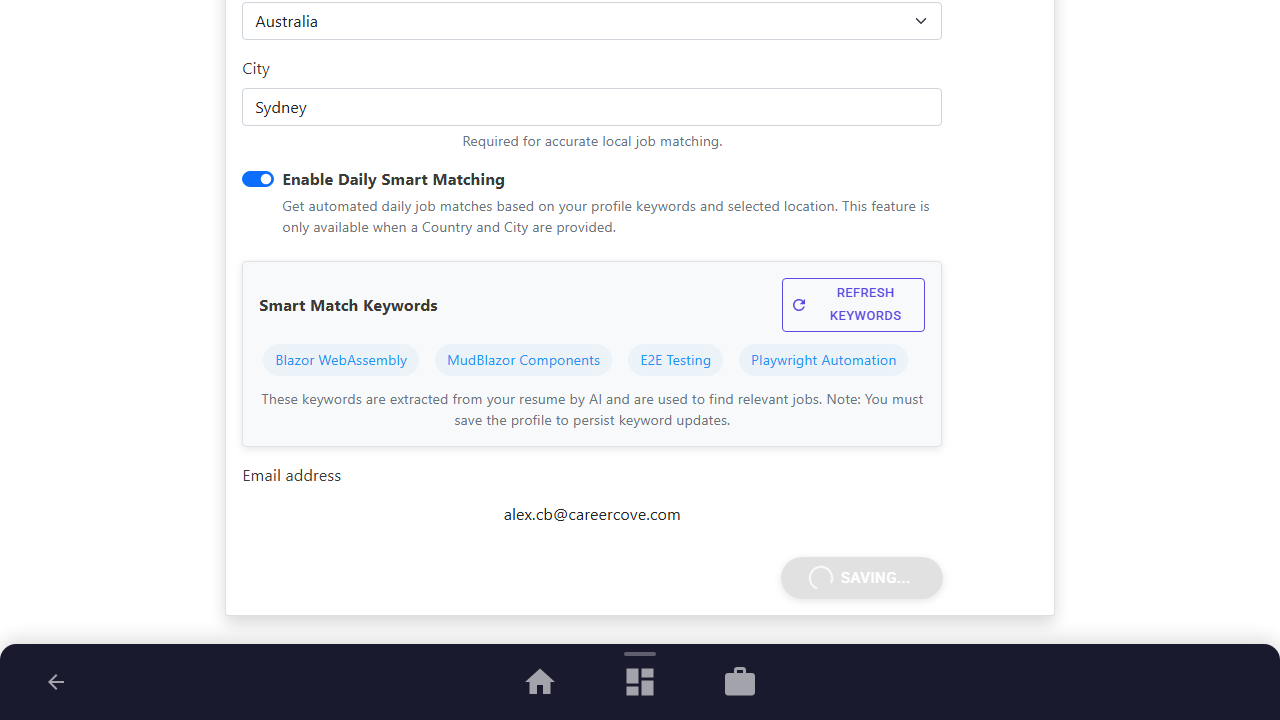
Click the "Save Changes" button to persist your preferences across login sessions. The matching engine immediately begins indexing matches and compiling your tailored recommendations pool.
Purpose: Persist your smart matching criteria across all devices.
Benefit: Guarantees continuous background discovery tailored to your exact profile.
Outcome: A success notification confirms your smart matching settings have been updated and stored.
Step 5: Review Recommendations on the Career Dashboard
Navigate to your Career Dashboard (or Profile tab) to view your personalized "Smart Recommendations" feed. Each card displays key job details, location, compensation estimates, required skills, and an AI Match Score calculated specifically for your profile.
Purpose: Review your tailored matches without manual search queries.
Benefit: Instantly surfaces top-fit roles scored by relevance so you can focus on high-probability opportunities.
Outcome: The Career Hub presents an interactive feed of recommended roles with live match scores and action controls.
Step 6: Inspect Postings & Track Viewed Status
Click "View Source" on any recommendation tile to open the original job listing in a new browser tab. CareerCove automatically marks the card with a blue "Looked at" chip so you always know which postings you have already examined. You can also toggle the view status at any time using the quick view icon button.
Purpose: Investigate the full job specification while maintaining an audit trail of inspected postings.
Benefit: Eliminates repetitive checking and second-guessing whether you have already seen a role.
Outcome: The tile displays a "Looked at" status chip, allowing you to easily distinguish between fresh and viewed postings.
Step 7: Save to Pipeline or Hide with Instant Replacement
When you spot a great opportunity, click "Add to Tracked Jobs" to immediately import it into your Job Tracking board (/jobs), ready for AI cover letters and interview prep. If a role is not what you are looking for, click the "Hide" (X) button—the role is permanently marked as "Not Interested" so it never clutters your feed again, and the system instantly pulls the next best match from your curated recommendation pool to replenish your feed. You can also use the Status Filter dropdown (All, Unread Only, Looked At, Saved Only) to focus on unread roles.
Purpose: Progress high-potential roles into your pipeline and permanently filter out poor fits with seamless pool replenishment.
Benefit: Keeps your daily opportunity feed fresh, engaging, and uncluttered without losing momentum.
Outcome: Saved jobs appear in your tracked pipeline, while hidden roles are dismissed and replaced immediately with new opportunities.
See It In Action
Maximising Your Journey
Daily smart matching runs background scans comparing your optimized resume keywords against new job listings to suggest highly compatible opportunities. To maximize results, regularly update your resume with recent achievements, check your recommendations daily, and save promising matches into your Job Tracking pipeline to begin tailoring your application materials.
Ready to apply this guide to your own career?
Register an account or sign in to save your progress, build and optimize your resume, and access advanced AI career tools.
Recommended Pathway Steps