Document & Template Management
Format and export unified application packs.
Overview & Core Benefits
Assertion of your professional brand requires visual excellence. Seamlessly apply visual templates, refine text, and compile multiple documents into a single application pack.
Step-by-Step Walkthrough Guide
Follow these step-by-step instructions to master the Document & Template Management workflow on the CareerCove platform.
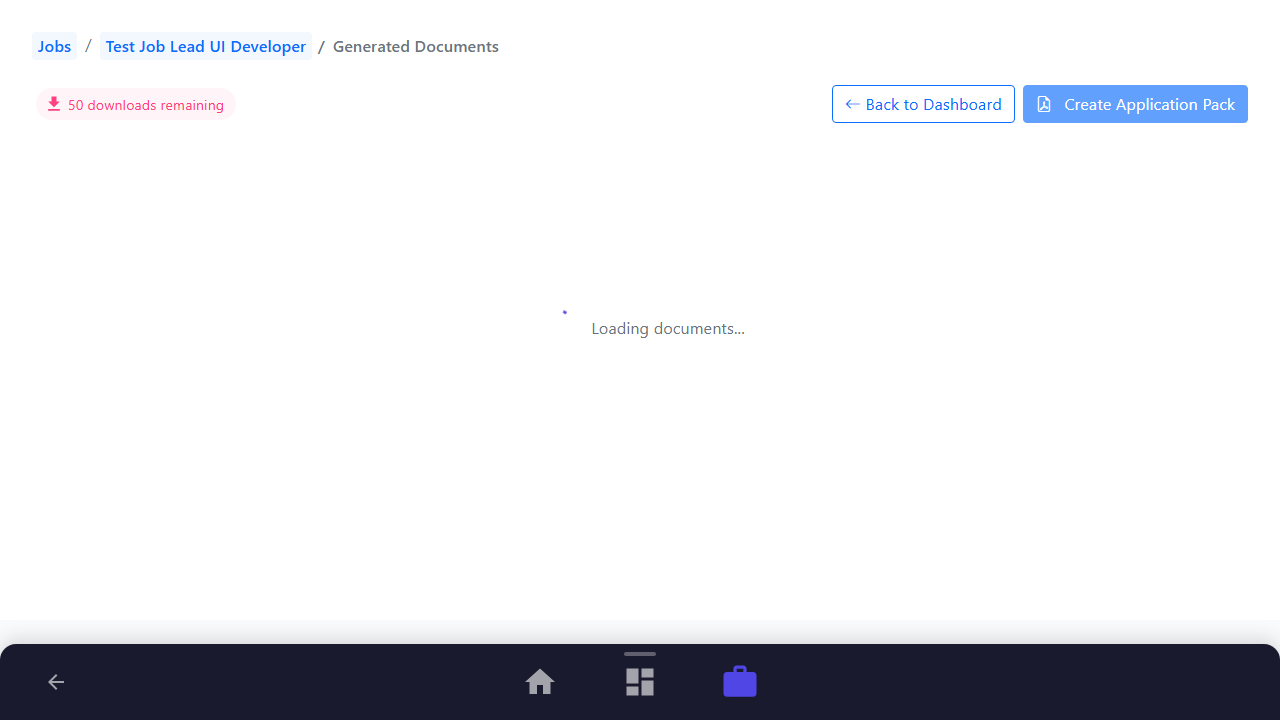
Step 1: Open Generated Documents Dashboard
Navigate to the job-specific generated documents dashboard where all your active draft documents (resumes, cover letters, selection criteria) are listed.
Purpose: Open the document management workspace.
Benefit: Gives a high-level view of all customized materials for this role.
Outcome: The dashboard loads, displaying pre-generated resume and cover letter cards.
Step 2: Open and Modify Document Content
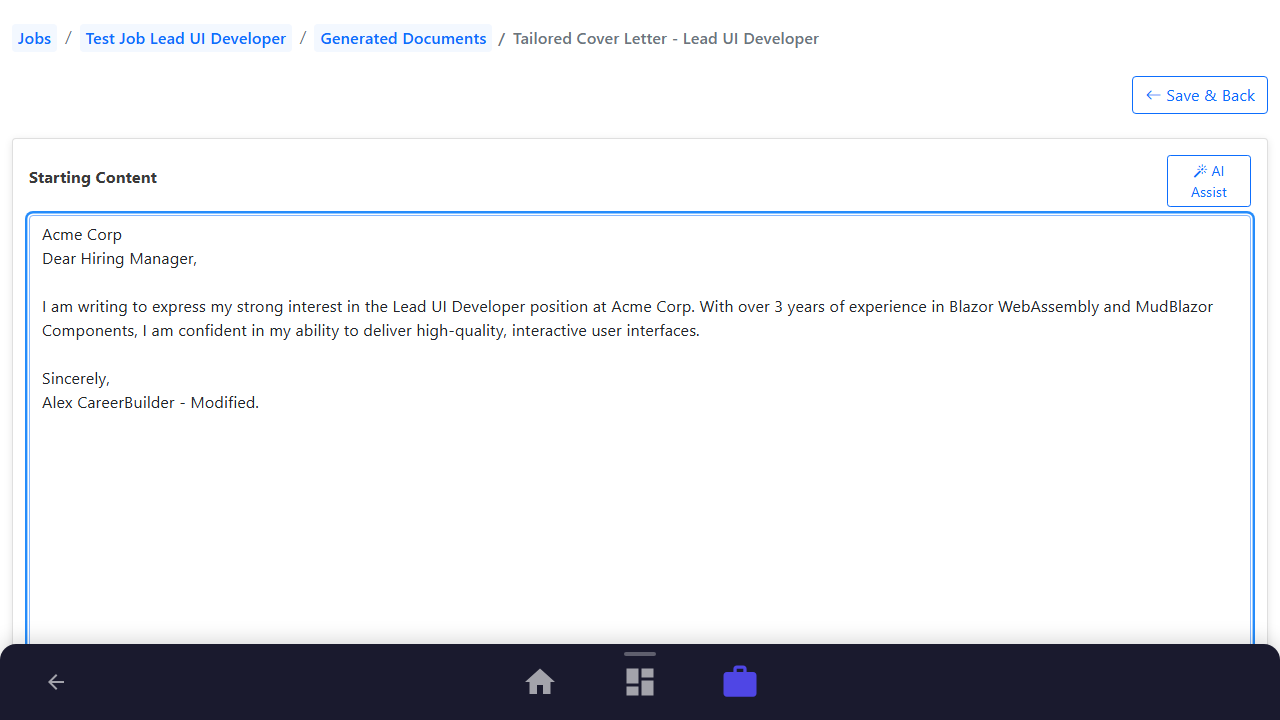
Click on the pre-generated Cover Letter card to open the visual document editor. Make manual edits directly to the text body to polish the content.
Purpose: Edit the drafted cover letter manually.
Benefit: Allows fine-tuning the AI's output with specific personal touches or details.
Outcome: The document editor screen is displayed showing the cover letter's content inside the text area.
Define container
Step 3: Save Edits and Return to Dashboard
Click "Save & Back" in the top right corner. The platform automatically commits your modifications to the database and takes you back to the main document list.
Purpose: Save your custom edits to the database.
Benefit: Auto-save ensures no custom adjustments are lost during navigation.
Outcome: The changes are saved, and you are navigated back to the generated documents list.
Step 4: Preview Visual Layout Templates
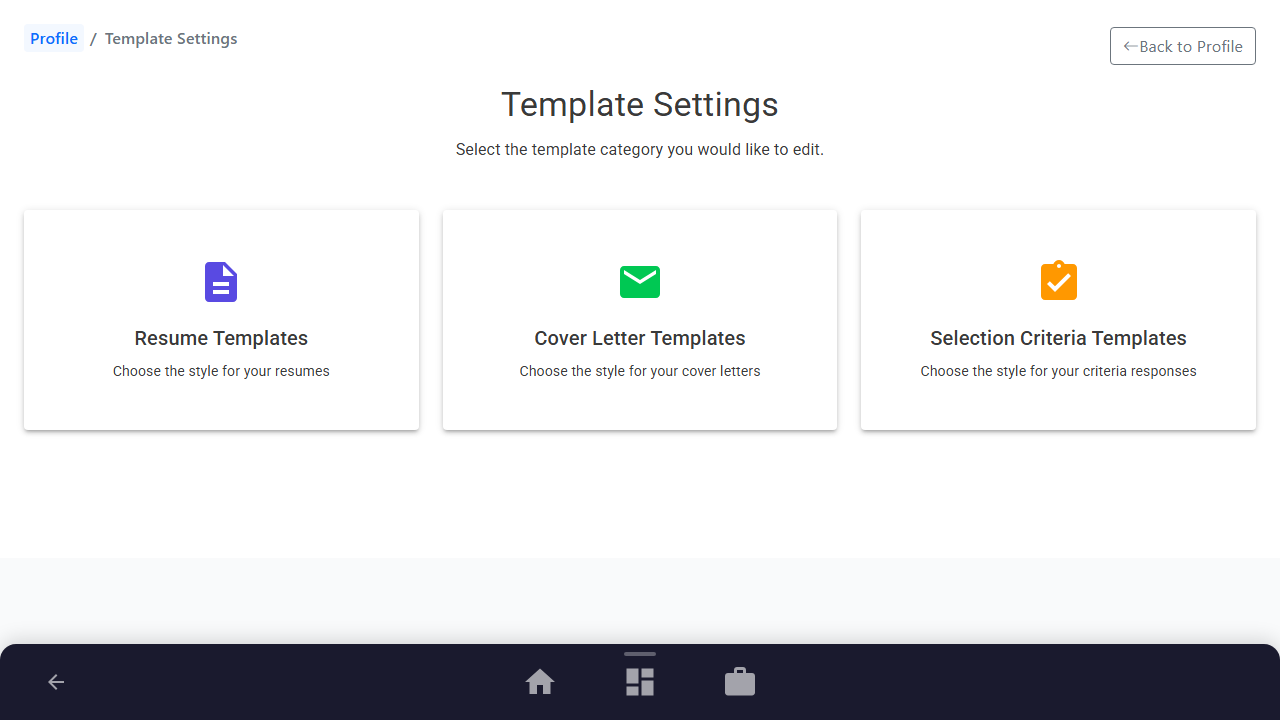
Navigate to the template settings page to review design configurations and visual layouts. Here you can configure font sizing, color styling, and page format settings.
Purpose: Verify template styling options.
Benefit: Assures visual coherence across the entire application packet.
Outcome: The template configuration page displays layout options.
Step 5: Export Application Pack
Navigate back to the generated documents dashboard, click "Create Application Pack", check the documents you want to compile (e.g. Resume, Cover Letter), and click "Generate Pack" to export a unified PDF.
Purpose: Compile and export a single, unified PDF application pack.
Benefit: Delivers a clean, professional multi-page document for hiring managers.
Outcome: The export pack dialog is completed, and the combined document downloads.
See It In Action
Maximising Your Journey
Saving tailored document templates lets you quickly tweak cover letters and responses for multiple related roles without starting from scratch.
Ready to apply this guide to your own career?
Register an account or sign in to save your progress, build and optimize your resume, and access advanced AI career tools.
Recommended Pathway Steps