Document Settings & Constraints
Stay within strict application guidelines.
Overview & Core Benefits
Enforce page counts and word limits before generating. Save custom rules as presets to rapidly apply them to future government or corporate roles.
Step-by-Step Walkthrough Guide
Follow these step-by-step instructions to master the Document Settings & Constraints workflow on the CareerCove platform.
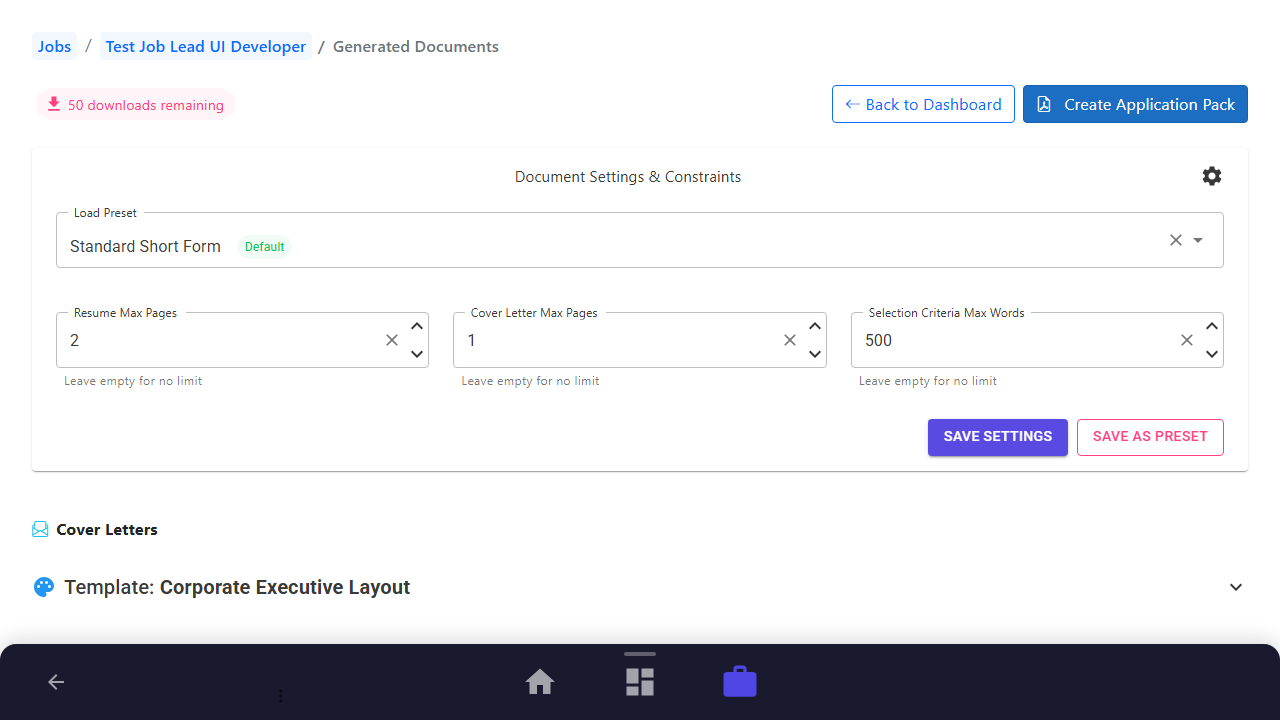
Step 1: Open Generated Documents and Expand Constraints Panel
Navigate to your job application's generated documents workspace and expand the "Document Settings & Constraints" panel at the top.
Purpose: Access structural constraint fields.
Benefit: Lets you set boundaries before triggering AI generation, preventing overflows.
Outcome: The settings panel expands, displaying input fields for page limits and word counts.
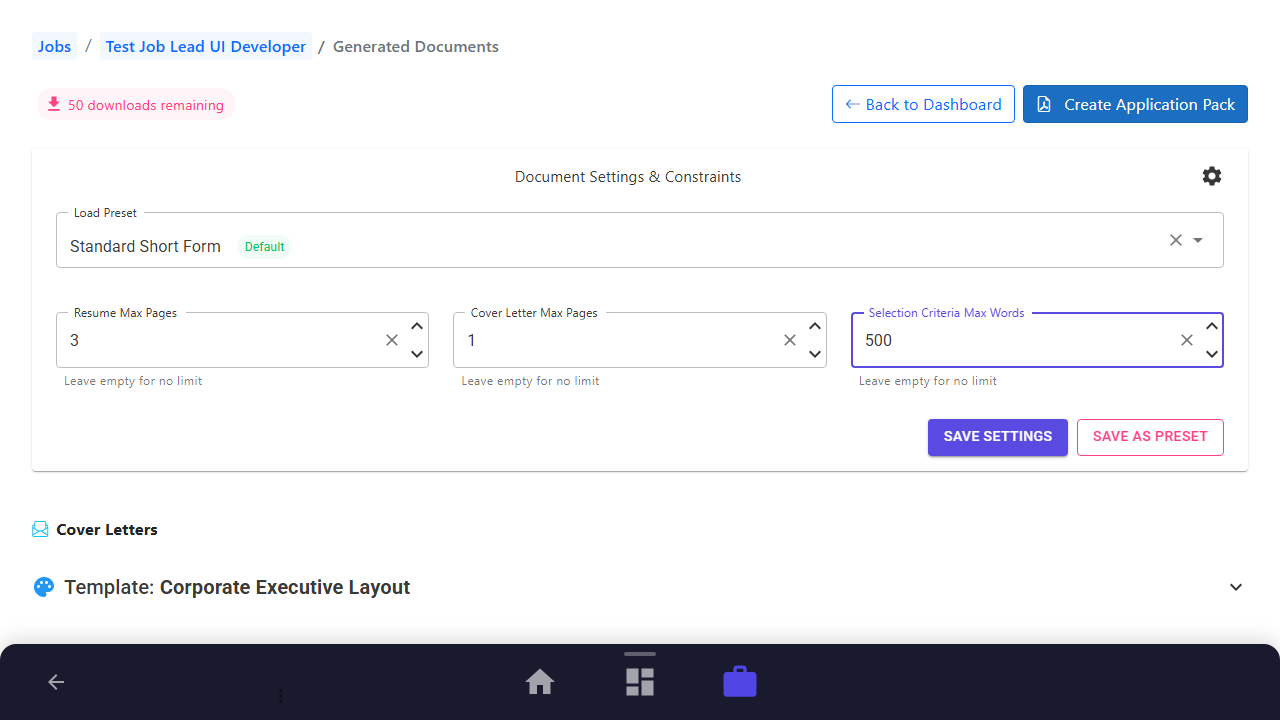
Step 2: Configure Constraint Limits
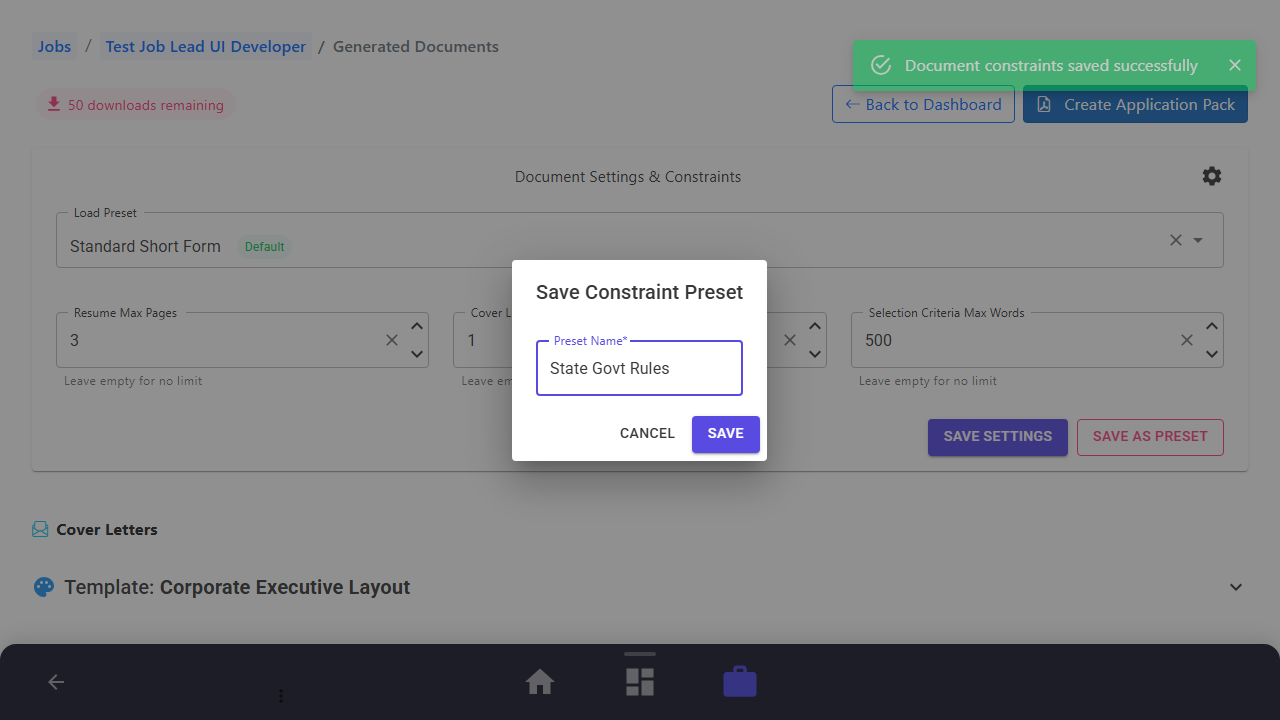
Modify the input fields for maximum pages or word counts. For example, set Resume Max Pages to 3, Cover Letter Max Pages to 1, and Selection Criteria Max Words to 500.
Purpose: Specify strict document limits.
Benefit: Align your documents perfectly with specific employer submission instructions.
Outcome: The new limit values are filled in the corresponding fields.
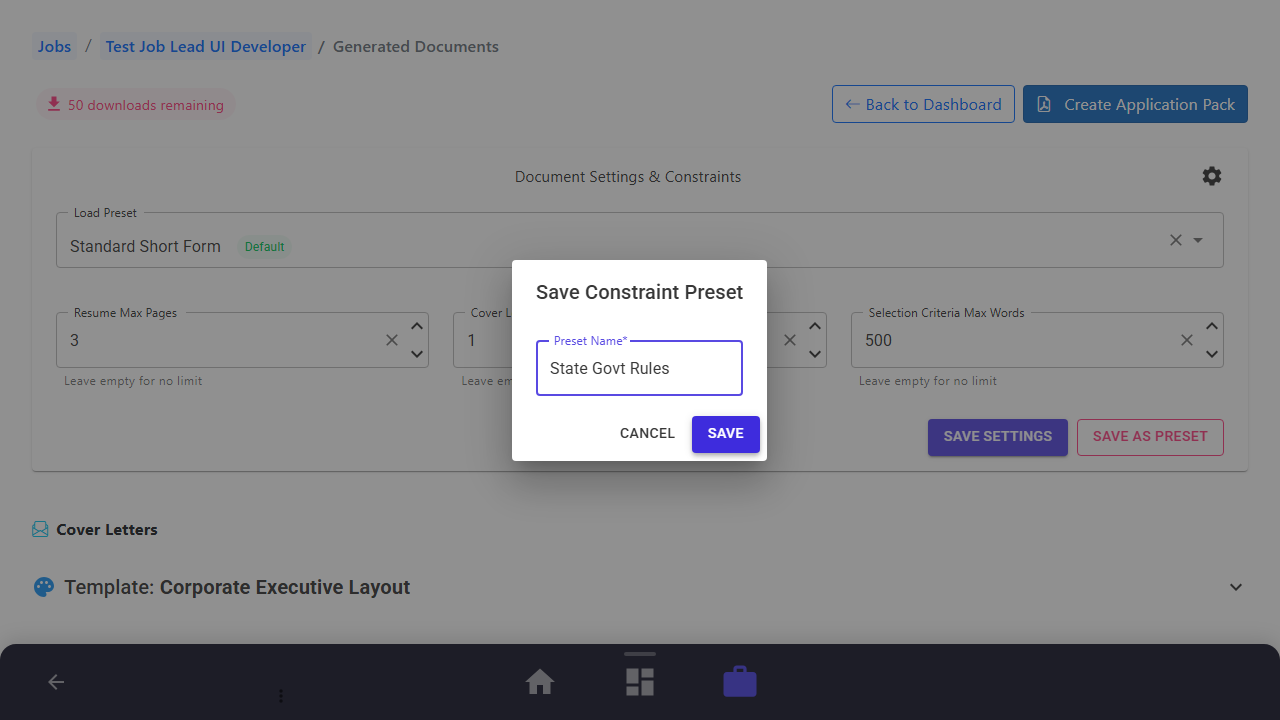
Step 3: Save Configuration as a Reuseable Preset
Click "Save as Preset". In the dialog, name your preset (e.g. "State Govt Rules") and click "Save" to make this configuration reusable across other jobs.
Purpose: Save your configured limits as a preset.
Benefit: Reapply complex submission rules to other applications with a single click.
Outcome: The preset is saved and appears in the "Load Preset" dropdown list.
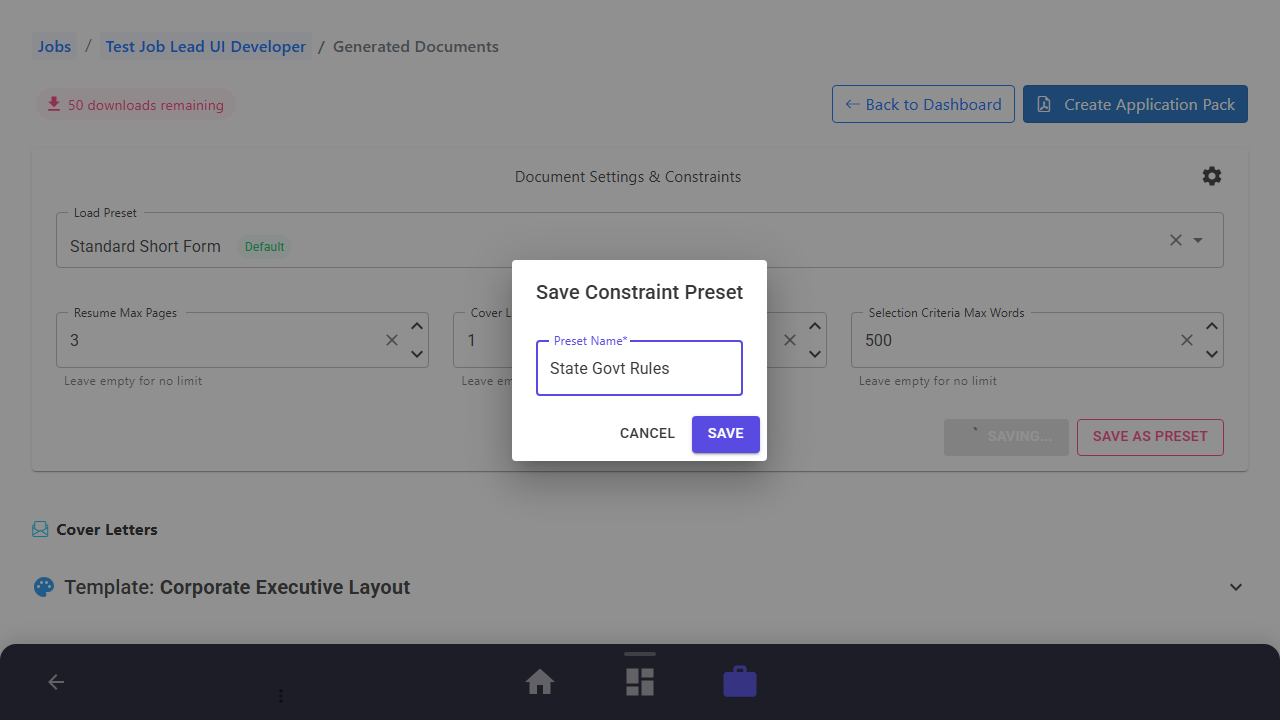
Step 4: Persist Settings to Job
Click the "Save Settings" button to write these constraints directly to this job's workspace.
Purpose: Save constraints to the current job opportunity.
Benefit: The workspace now permanently enforces these guidelines for all future generation tasks for this job.
Outcome: A confirmation notification is displayed, and the constraints are saved.
Step 5: Verify Constraints Applied in Generation
Look at the "Quick Generate" card. You will see a chip indicating the active limit (e.g. "Max 1 Pages" for Cover Letter) which will be strictly followed.
Purpose: Confirm constraint enforcement is active.
Benefit: Visual reassurance that all AI generation respects your guidelines.
Outcome: A visual chip confirms that the Cover Letter max page limit is active on the generator card.
See It In Action
Maximising Your Journey
Setting page and word limit constraints ensures your generated cover letters and criteria responses fit the exact guidelines of the application.
Ready to apply this guide to your own career?
Register an account or sign in to save your progress, build and optimize your resume, and access advanced AI career tools.
Recommended Pathway Steps