Fixing Incomplete Areas on Your Resume Dashboard
Surgically resolve profile warnings.
Overview & Core Benefits
Navigate straight from dashboard alerts to the appropriate form fields, supply missing data, and watch your status badges turn green.
Step-by-Step Walkthrough Guide
Follow these step-by-step instructions to master the Fixing Incomplete Areas on Your Resume Dashboard workflow on the CareerCove platform.
Step 1: Open Your Resume Dashboard
Navigate to the Resume Dashboard. The dashboard displays a summary of your profile's completeness.
Purpose: To check the completeness status of your entire resume at a glance.
Benefit: Highlights exactly which sections need attention before you export or apply to jobs.
Outcome: The dashboard page loads, showing a red danger badge on the Personal Details card indicating missing information.
Step 2: Navigate to the Incomplete Section
Click the 'Personal Details' card to navigate directly to the personal information editor page.
Purpose: To access the editing fields where you can supply the required profile data.
Benefit: Saves time by routing you immediately to the specific form causing the incomplete warning.
Outcome: You are redirected to the Personal Details editor page.
Step 3: Provide Missing Information
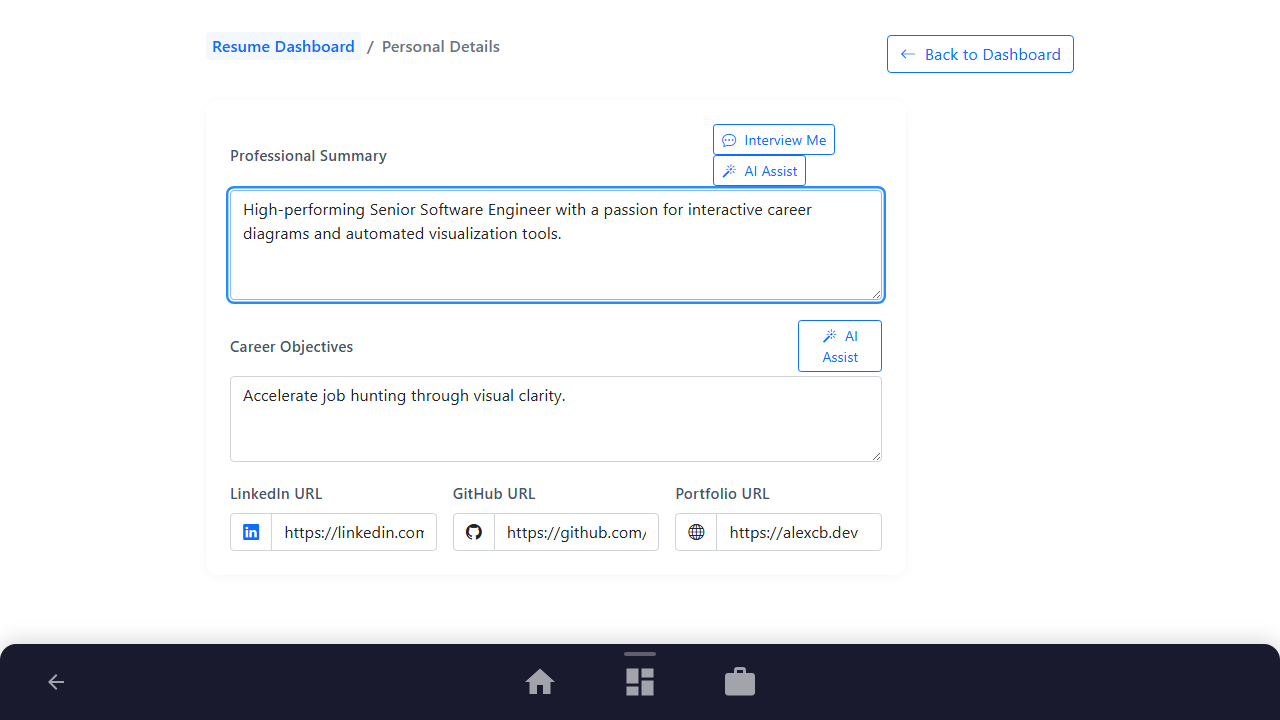
Enter a professional summary detailing your engineering background and career accomplishments.
Purpose: To fill in the critical summary field required to pass the profile completeness audit.
Benefit: Provides recruiters and matching algorithms with context about your capabilities.
Outcome: The professional summary text is populated in the editor field.
Step 4: Save and Verify Status Recovery
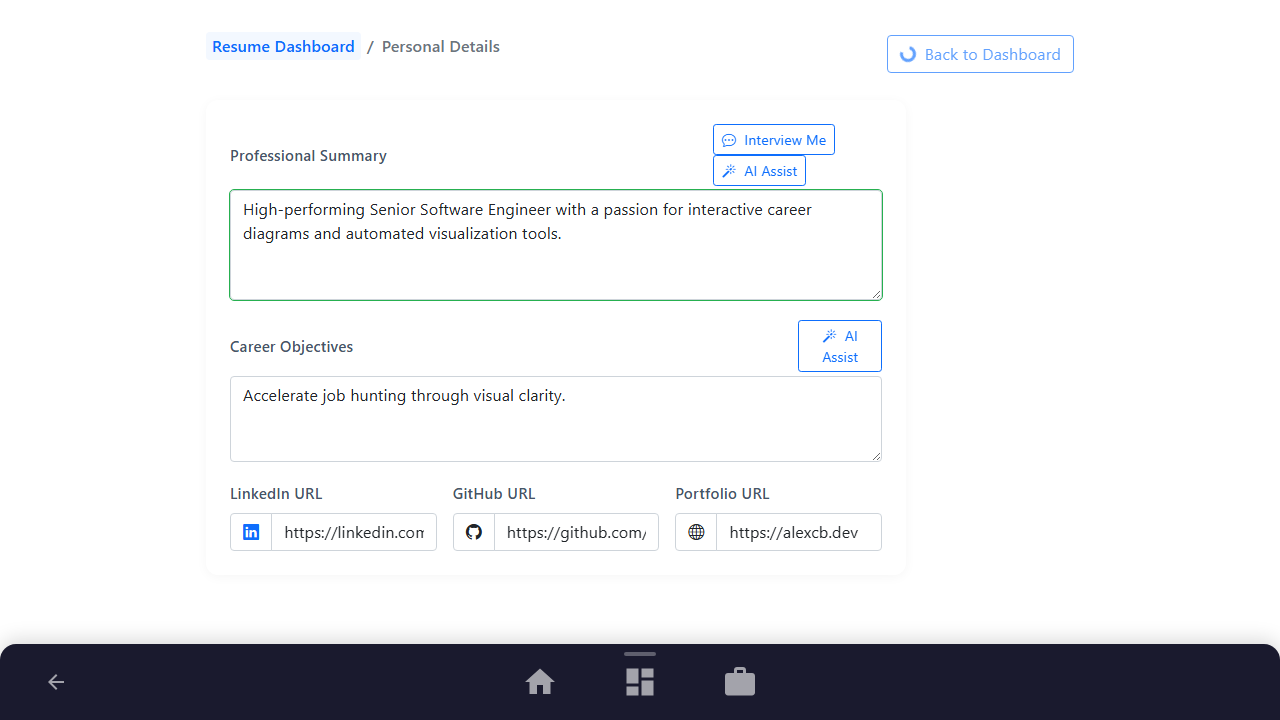
Click the 'Back to Dashboard' button. The platform automatically saves your updates and returns you to the main view where the card badge should now be green.
Purpose: To commit your changes and verify that the section status has successfully returned to active.
Benefit: Assures you that your resume is now complete and optimized for job applications.
Outcome: The dashboard loads with a green success checkmark badge displayed on the Personal Details card.
See It In Action
Maximising Your Journey
Resolving outstanding completeness warnings ensures your profile is fully optimized and ready for the ATS scanner and recruiters.
Ready to apply this guide to your own career?
Register an account or sign in to save your progress, build and optimize your resume, and access advanced AI career tools.
Recommended Pathway Steps