Resume AI Generation
Auto-generate sections instantly.
Overview & Core Benefits
Eliminate manual data entry by using nested AI generation to turn simple descriptions into structured achievements and skills.
Why This Matters
Summary Flow
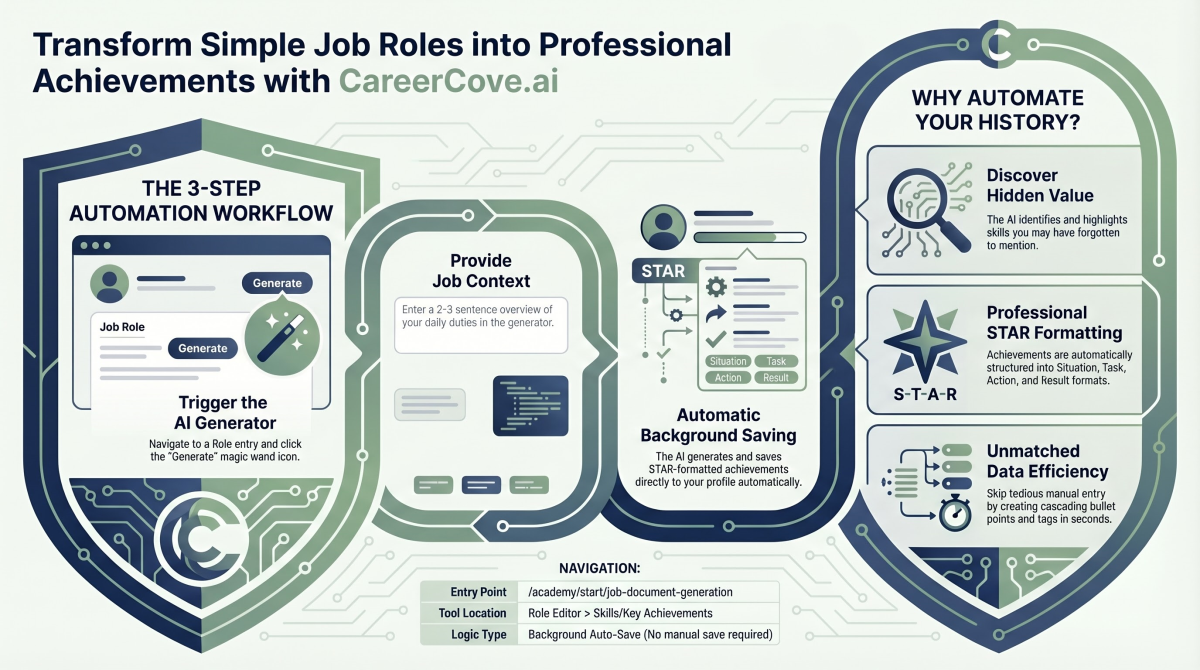
Step-by-Step Walkthrough Guide
Follow these step-by-step instructions to master the Resume AI Generation workflow on the CareerCove platform.
Step 1: Open Your Target Role
Navigate to your profile's experience section and click on the specific role you want to enhance to open the detail editor.
Purpose: To access the configuration panel of an individual work history entry.
Benefit: Allows you to focus on details, achievements, and skills for one specific role at a time.
Outcome: The Role Editor page loads, displaying current description, skills, and key achievements lists.
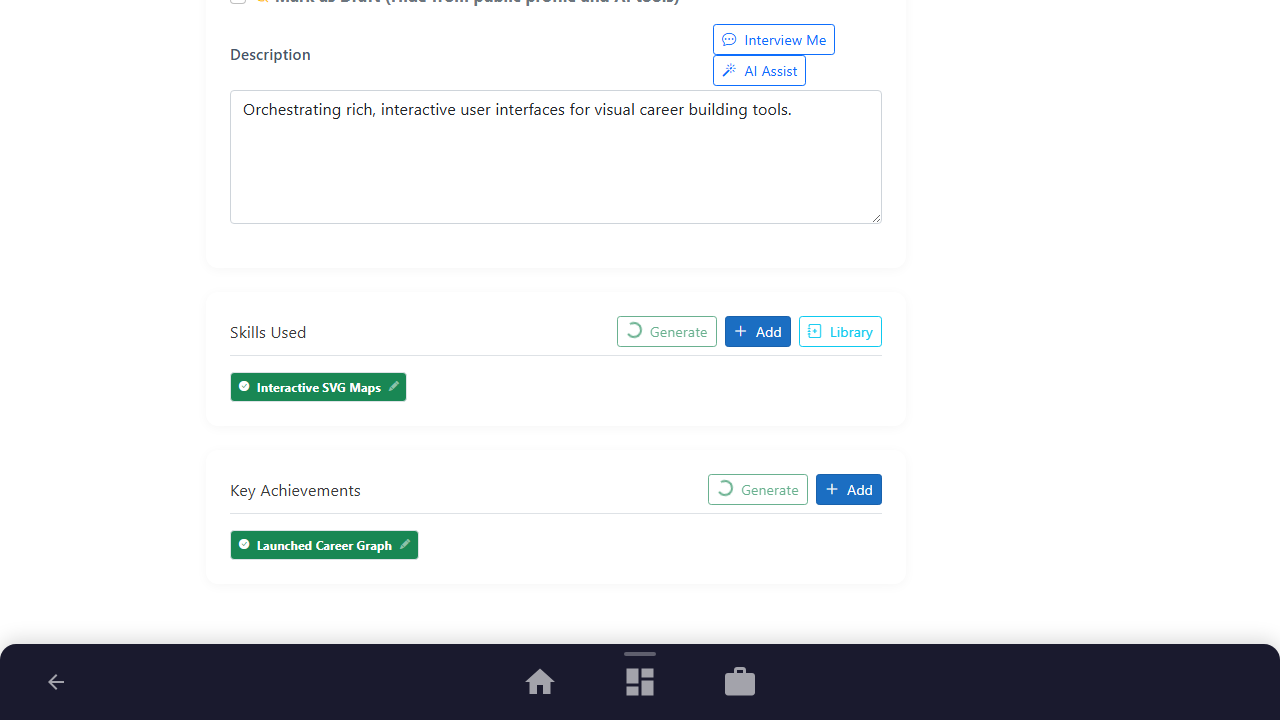
Step 2: Launch the AI Generator
Click the prominent "Generate" button featuring the magic wand icon next to the relevant child list to launch the generator.
Purpose: To initialize the nested AI generation workspace for the selected category.
Benefit: Pre-targets the AI output so that generated data is placed exactly where it belongs.
Outcome: The AI Generator page loads with pre-configured headers matching the targeted role.
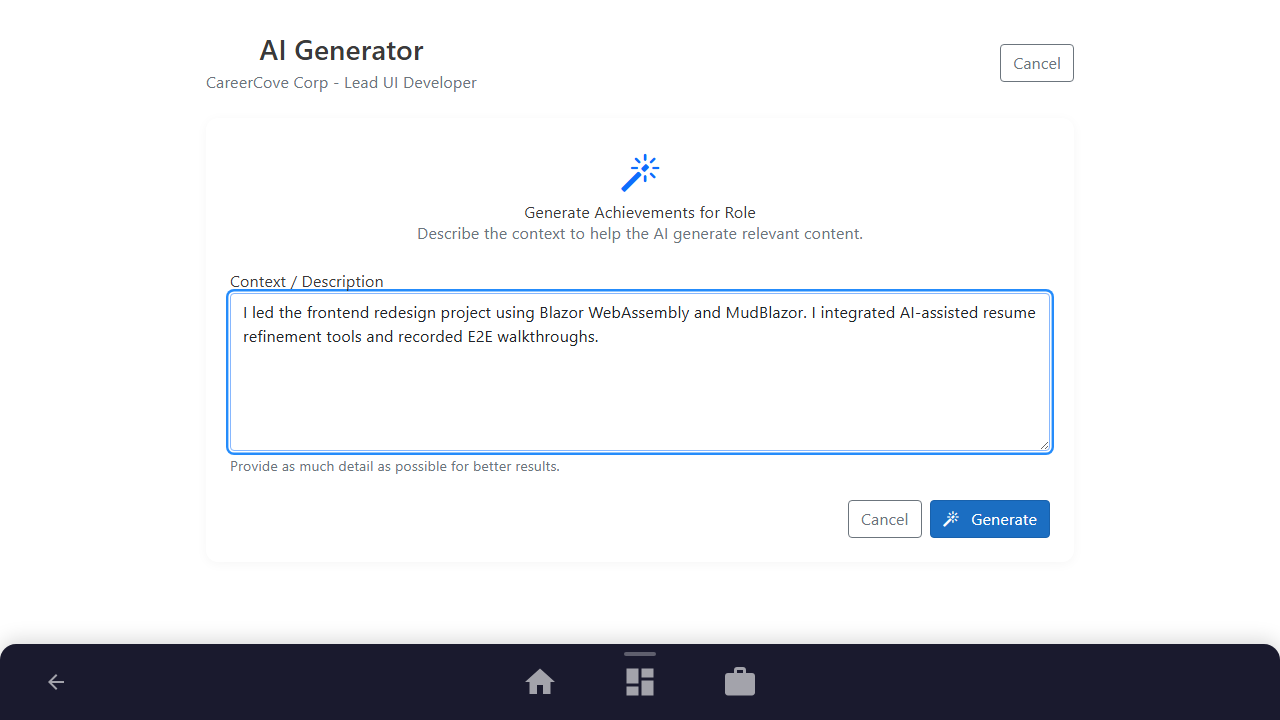
Step 3: Provide the Context
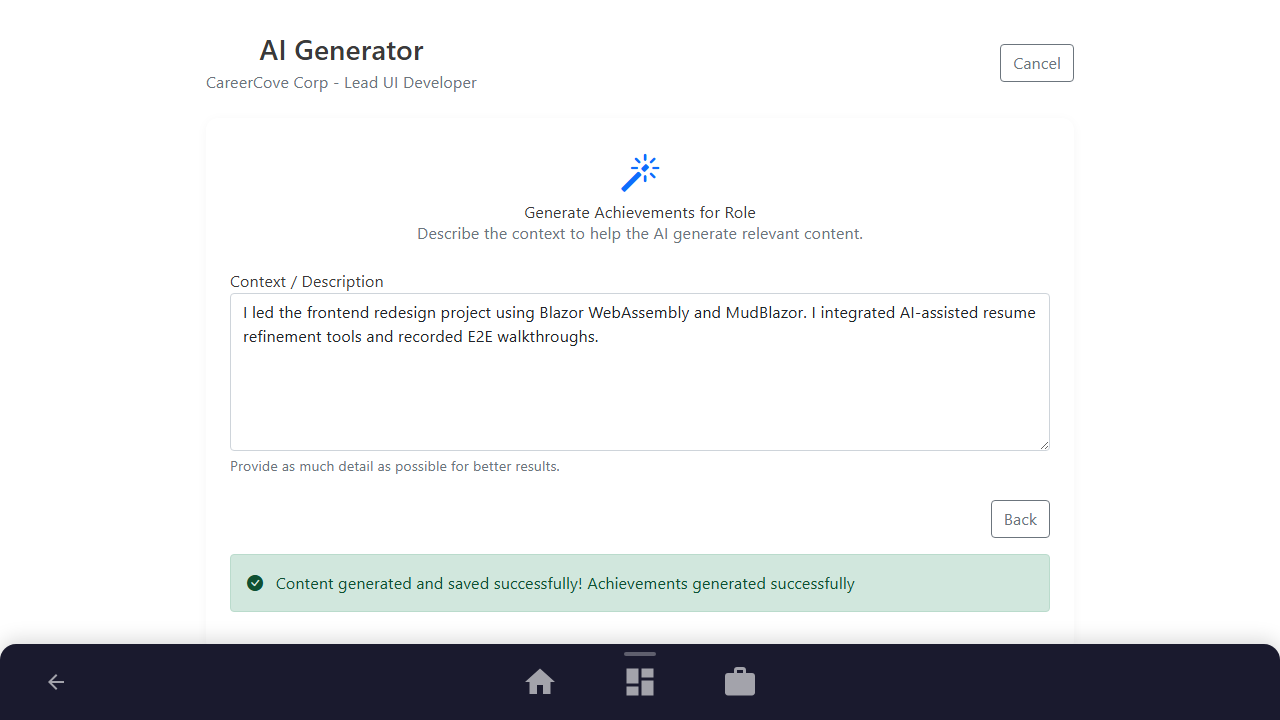
Type or paste a short description of your daily responsibilities or achievements in the main context text area.
Purpose: To supply the background information and context required by the AI model.
Benefit: Allows you to write in simple, informal sentences while the AI handles the professional formatting.
Outcome: The description field is populated with your draft text.
Step 4: Generate and Auto-Save
Click the primary "Generate" button to trigger the content generation and automatic saving process.
Purpose: To execute the AI model prompt, parse results, and write them directly to your cloud profile database.
Benefit: Eliminates copy-pasting by automatically locking your generated achievements into your resume.
Outcome: A success message is displayed indicating the achievements were successfully generated and saved.
Step 5: Review the Results
Click the "Back" button to return to the Role Editor and inspect the newly generated list entries.
Purpose: To verify and review the quality of the generated bullet points.
Benefit: Ensures you can immediately see the structure of your new resume entries in the editor layout.
Outcome: You are returned to the Role Editor page where the achievements list displays your new STAR-structured bullet points.
See It In Action
Maximising Your Journey
Leveraging generative AI transforms raw role descriptions into highly structured, accomplishment-driven paragraphs that highlight your direct impact.
Ready to apply this guide to your own career?
Register an account or sign in to save your progress, build and optimize your resume, and access advanced AI career tools.
Recommended Pathway Steps